
- Editor training
- BlueCue
BlueCue connects DaVinci Resolve, Claude Code and our planning sheets. It isn't one fixed process: we pick the control method that fits the project, and timeline markers carry the notes either way.
Every edit at BlueForest is shared between you and Claude. You make the picture decisions in Resolve. Claude builds assemblies, graphics and exports, and keeps the paperwork in sync. BlueCue is how the two of you talk: through markers on the timeline.
How much structure sits behind those markers depends on the project. Most edits don't need a planning sheet at all. Some do.
Claude builds the assembly, you leave notes as markers and timecodes, and Claude works through them. No sheet. Best for interview-led films, recruiting and brand videos, and quick turnarounds.
Every planned shot is a row in a Google Sheet, pushed onto the timeline as a marker and synced back when it's placed. Best for shot-by-shot work like music videos and storyboarded spots.
| If the project… | Use |
|---|---|
| Is built from interviews and found moments, so the story is found in the edit | Claude + markers |
| Has a storyboard with a fixed shot list that must all be accounted for | AV Script |
| Needs a producer or client to track shot progress without opening Resolve | AV Script |
| Is a short turnaround, or a cutdown of an existing edit | Claude + markers |
| Starts loose but grows a lot of moving parts | Start with markers; Ammon may add a sheet |
Claude reads that file on its own, so always open Claude Code in the project folder. If you're not sure which mode a project is in, ask Ammon before you cut.
This loop was worked out on the R Brooks recruiting films. Every pass is the same, and a film typically goes around it six to eight times.
Exports/ and checks the file. Drag it into Frame.io yourself (it's too big for Claude's upload), then ask Claude for the share link.Both| You, in Resolve | Claude |
|---|---|
| Picture edit: trims, slides, inserts, swapping takes | Assembly, title cards, lower thirds, exits |
| B-roll placement | Conforming graphics and the music duck to your cut |
| Blue-marker notes and timecode notes | Working through your notes; flagging rule conflicts |
| Dragging the export into Frame.io | Export, file check, share link, thumbnail |
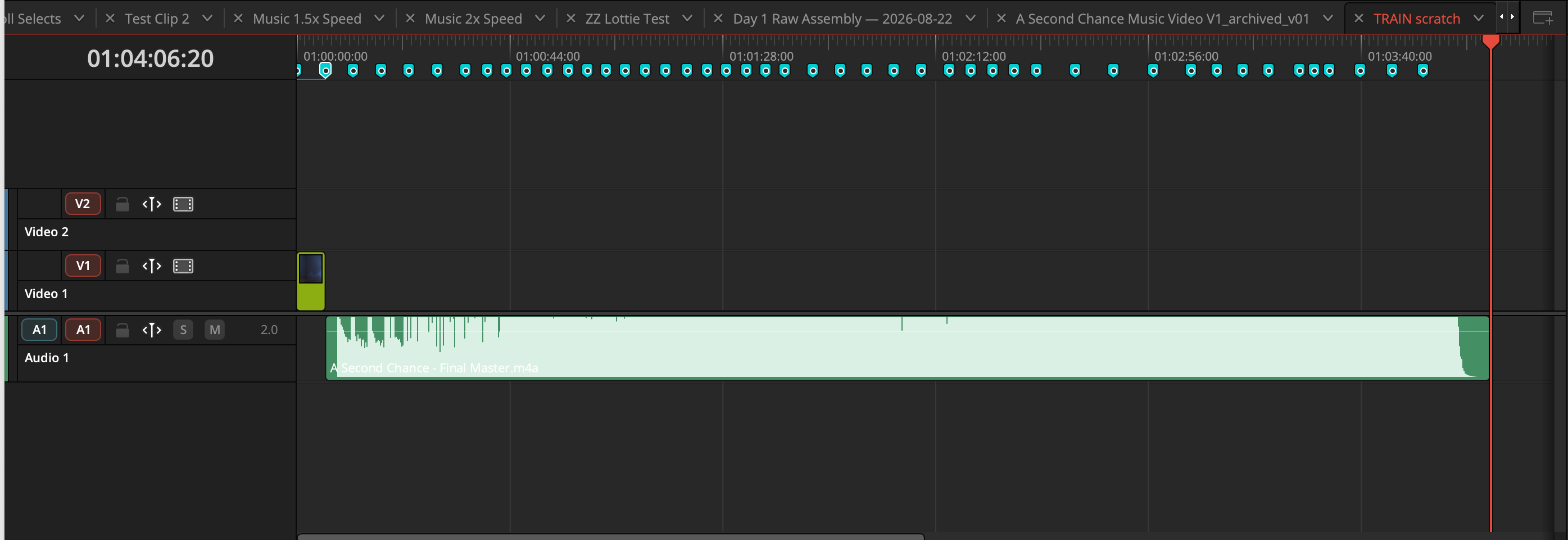
When a project is planned shot by shot, every shot or asset is one row in a Google Sheet: the AV Script and Asset List. BlueCue pushes each row onto the timeline as a color-coded marker at its planned time, with the shot description in the marker note. You edit against those markers.
When a shot is cut in, you turn its marker Green. Sync writes Placed = TRUE back to the sheet, and the producer sees progress without opening Resolve.
Three-letter type plus three digits, e.g. BRL014. If a row has an ID, the shot is planned.
The prefix decides the marker color. B-roll is a Cyan marker and a Teal clip.
One marker per row, at the row's timecode. The markers are the edit map.
Only you turn a marker Green (or Mint), and only when the shot is on the timeline.
Shot definitions go sheet → Resolve. Only placement status comes back. Never re-plan inside Resolve.
| Step | What happens |
|---|---|
| Plan | Read the sheet before you cut. VISUAL is the instruction; VOICE is the line or lyric the shot sits under. Timecodes are HH:MM:SS:FF; other formats are skipped. |
| Push | Once at the start, and again only if rows are added. One marker per row. |
| Edit | Cut footage into each marker's span. Picture goes on V2, the asset track. |
| Mark Green | Right-click the marker → Color → Green. Don't tick Acquired or Placed by hand. |
| Sync | At the end of the session. Green markers become Placed = TRUE; moved markers update their timecodes. |
| Prefix | Type | Marker |
|---|---|---|
INT | Interview | Blue |
BRL | B-roll | Cyan |
DRG | Resolve graphic | Purple |
REM | Remotion comp | Fuchsia |
AFX | After Effects | Pink |
VOI | Voiceover | Lemon |
MUS · SFX | Music · Sound effect | Lavender · Yellow |
IMG · 3DG · MSC | Still · 3D graphic · Misc | Sand · Cream · Cocoa |
| — | Placed | Green or Mint |
Don't rename or delete markers; move them if the edit moves, and sync follows. One sheet per timeline (a cutdown gets its own). Sync is not undo: turning a marker back from Green doesn't un-place anything. If markers land an hour late, the timeline starts at 01:00:00:00. Tell Ammon instead of dragging them.
Do these once, in order, with Ammon nearby for the ones that need him.
blueforest-studios/blueforest-bluecueBoth modes/usr/bin/python3 -m pip install --user -r requirements.txtAV ScriptSETUP_GUIDE.md Part 2. Your token lands in ~/.bluecue/, never in the repo.AV ScriptEverything goes through Claude Code, in plain words, with Resolve open on the project timeline. Read Claude's report every time: it lists what it skipped and why.
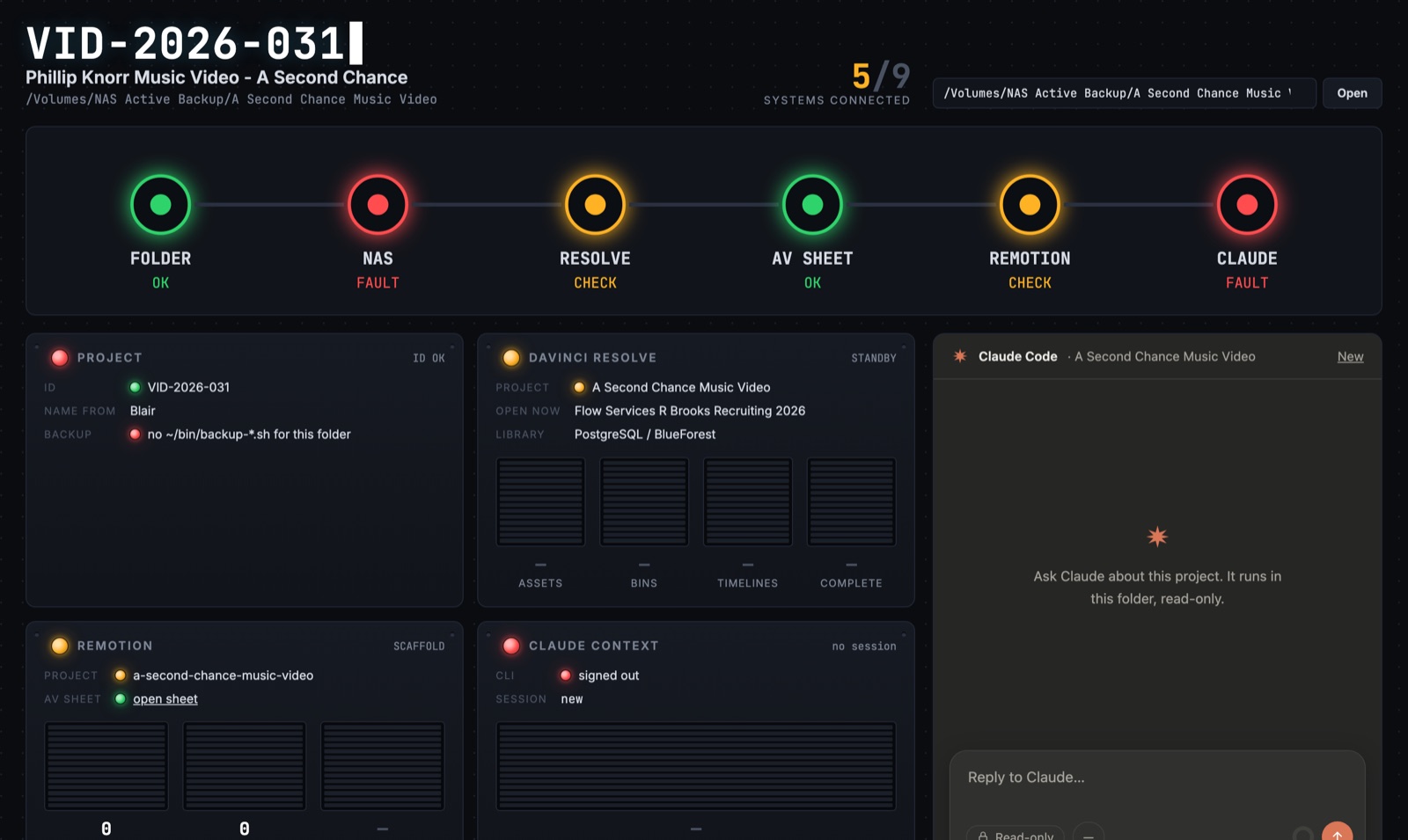
We're building a console that shows a whole project at a glance and lets you control parts of it from one screen. Point it at a project folder and it checks every link in the chain: folder → NAS backup → Resolve → AV Sheet → Remotion → Claude. Each one lights green (connected), amber (reachable, not ready) or red (broken or missing).
Below the chain are panels for the project, Resolve (assets, bins, timelines), Remotion comps and Claude's context, plus a Claude panel that answers questions about the project, read-only by default.
Brianna jogs past a graveyard at night. An incantation wakes Gustav Mahler's gold-skeleton ghost. He spell-binds her into a two-world dance, graveyard and saturated studio, and drops back into his coffin at dawn with a wink. A music video is exactly the kind of shot-by-shot project the AV Script is for.
Song clock = video clock. Timeline zero is the first frame of the song master, so every sheet timecode is song time.
Do them in order. Ammon watches the first two.
TRAIN scratch, push markers, and confirm: count = planned rows, all Cyan, first marker at 0:00.AV ScriptPlaced = TRUE.AV Script| Blue marker | A note to Claude on the timeline |
| AV Script | The optional shot-by-shot planning sheet |
| Asset track | V2, where placed picture goes |
| Push · Sync | Sheet → markers · markers → sheet |
| customData | Hidden marker field holding the row key; never edit |
| Blair | BlueForest's central database |
| Console | The BlueCue project dashboard; a prototype for now |
Ammon tells you which mode your first project uses and walks the first pass with you.
The four "Both modes" items above, before your first session.
Start with the marker notes exercise; it's the loop you'll use most.
Anything unclear on this page? Pin a note with ?review and export it to Ammon.